

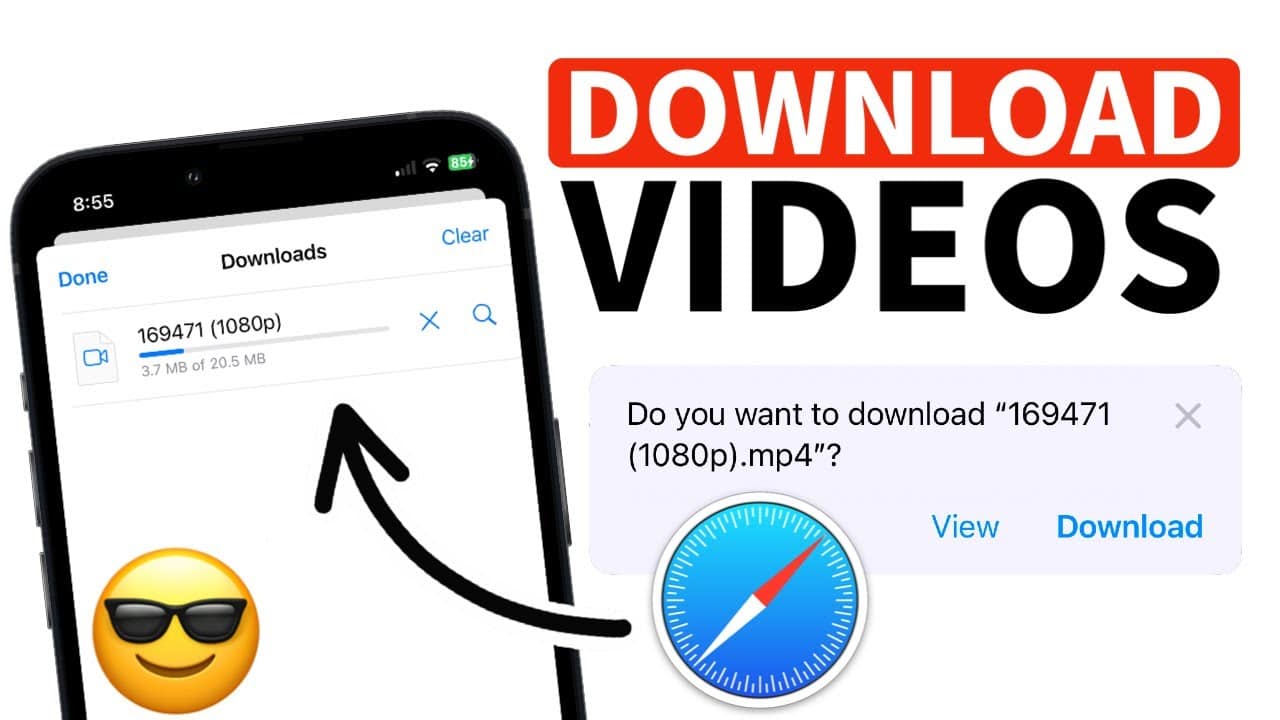
In today’s digital world, videos are everywhere—social media, streaming platforms, and educational websites. If you want to save videos for offline viewing on your iPhone, you need a reliable method. This step-by-step guide will show you how to download videos on iPhone quickly and easily, whether from YouTube, Facebook, Instagram, or other platforms.
Why Download Videos on iPhone?
Before diving into the methods, let’s explore why downloading videos is useful:
✅ Watch offline – No internet? No problem!
✅ Save data – Avoid buffering and excessive mobile data usage.
✅ Preserve content – Keep videos before they’re deleted.
✅ Easy sharing – Send videos via AirDrop, WhatsApp, or email.
Now, let’s explore the best ways to download videos on iPhone.
Method 1: Using the Files App (Built-in iOS Method)
The Files app allows you to download videos directly from Safari and save them to your iPhone.
Steps to Download Videos Using Files App
- Open Safari and Find the Video
- Go to a website with a downloadable video (some sites allow direct downloads).
- Long-Press the Video Link
- Tap and hold the video link until a menu appears.
- Select “Download Linked File”
- The video will download to your “Downloads” folder in the Files app.
- Access the Downloaded Video
- Open the Files app → Browse → Downloads to play the video.
Pros & Cons
✔ No app needed (built-in iOS feature).
✔ Works for direct download links.
❌ Not all websites support this method.
Method 2: Using Shortcuts App (Best for YouTube, Instagram, etc.)
Apple’s Shortcuts app lets you create custom workflows to download videos from almost any website.
Steps to Download Videos Using Shortcuts
- Install a Video Downloader Shortcut
- Go to https://tiktokdown.app (search for “Video Downloader Shortcut”).
- Tap “Add Shortcut”.
- Open the Video You Want to Download
- Go to YouTube, Instagram, or another platform.
- Tap Share → Copy Link.
- Run the Shortcut
- Open the Shortcuts app and run the “Video Downloader” shortcut.
- Paste the video URL when prompted.
- Save the Video to Photos or Files
- Choose “Save to Photos” or “Save to Files”.
Pros & Cons
✔ Works for most platforms (YouTube, Instagram, Facebook).
✔ No jailbreak required.
❌ Some sites may block downloads.
Method 3: Using Third-Party Apps (Easiest Method)
If you want a dedicated app for downloading videos, these are the best options:
Best Video Downloader Apps for iPhone
- Documents by Readdle (Free, No Ads)
- Built-in browser for downloading videos.
- Supports YouTube, Vimeo, and more.
- Video Saver – Downloader App (Free with Ads)
- Works with Instagram, Facebook, TikTok.
- MyMedia – File Manager & Player (Paid, No Watermark)
- Supports background downloads.
How to Use Documents by Readdle
- Download the App from the App Store.
- Open the Built-in Browser and go to a video site (e.g., YouTube).
- Copy the Video URL and paste it into the downloader.
- Save the Video to your iPhone’s storage.
Pros & Cons
✔ Simple and fast downloads.
✔ Supports multiple platforms.
❌ Some apps have ads or watermarks.
Method 4: Using Online Video Downloaders (No App Needed)
If you don’t want to install an app, online video downloaders work in Safari.
Best Online Video Downloaders
- SaveFrom.net (YouTube, Facebook, Vimeo)
- Y2mate.com (Fast, supports HD)
- TikTokDown.app (For TikTok videos)
Steps to Use an Online Downloader
- Copy the Video URL from YouTube, Facebook, etc.
- Go to an Online Downloader (e.g., SaveFrom.net).
- Paste the Link & Download in MP4 format.
- Save to Photos or Files app.
Pros & Cons
✔ No app installation required.
✔ Works on any iPhone model.
❌ Requires an internet connection.
Method 5: Downloading from Cloud Services (Google Drive, iCloud, Dropbox)
If your video is stored in Google Drive, iCloud, or Dropbox, you can download it easily.
Steps to Download from Google Drive
- Open the Google Drive App.
- Find the Video File and tap the three dots (⋮).
- Select “Download” → The video saves to your iPhone’s Files app.
Pros & Cons
✔ Easy for cloud-stored videos.
✔ No extra tools needed.
❌ Only works for your own uploaded videos.
How to Transfer Downloaded Videos to a Computer
Want to move videos from iPhone to PC or Mac?
Option 1: AirDrop (Mac Users)
- Open Files app → Select the video.
- Tap Share → AirDrop → Choose your Mac.
Option 2: iTunes/Finder (Windows & Mac)
- Connect iPhone via USB.
- Open iTunes (Windows) or Finder (Mac).
- Go to File Sharing → Select the video → Save to Computer.
Option 3: Email or Cloud Upload
- Upload to Google Drive, Dropbox, or iCloud and download on PC.
Tips for Successful Video Downloads on iPhone
🔹 Use Wi-Fi – Avoid mobile data charges.
🔹 Check File Format – MP4 works best on iPhone.
🔹 Avoid Copyrighted Content – Only download personal or permitted videos.
🔹 Update iOS – Ensure compatibility with the latest download methods.
Final Thoughts
Downloading videos on an iPhone is easy if you know the right methods. Whether you use:
- Built-in Files app
- Shortcuts automation
- Third-party apps like Documents by Readdle
- Online downloaders
You can save videos offline in just a few taps!
🚀 Try these methods today and enjoy buffer-free video watching anytime!
